Keeping FCTV33 APK updated can help you enjoy a smoother experience while using the app. New versions may bring performance improvements, bug fixes, interface changes, and better compatibility with Android devices. If you installed FCTV33 using an APK file, the update process may be different from apps downloaded through the Google Play Store. In this guide, we explain how to update FCTV33 APK, fix common update problems, and follow basic safety steps.
What Is FCTV33 App?
FCTV33 is an Android streaming app that users may use to explore live sports and other video content. Depending on the version, it may provide access to different categories and streaming options through a simple interface. Because APK versions can vary, available features and compatibility may change over time. Users who install the app outside the Google Play Store should pay attention to the download source, app permissions, and Android security settings before installing or updating it.
Why Should You Keep FCTV33 APK Updated?
Updating an app can provide several benefits. A newer version may fix problems found in an older release and improve how the app works on your device.
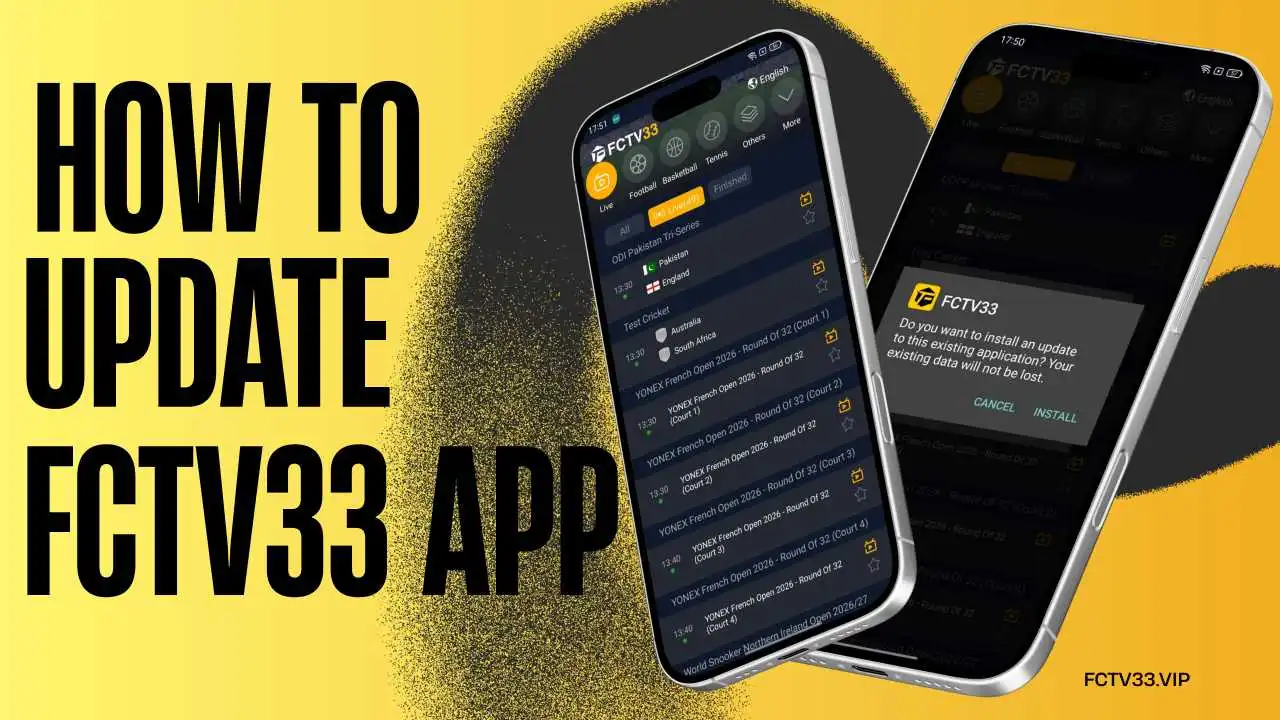
How to Update FCTV33 APK on Android
Follow these steps to update the app manually.
Step 1: Check Your Current Version: Open FCTV33 and look for its version number in the app’s settings or About section. This helps you determine whether you need a newer release.
Step 2: Find a Trusted Source: Go to the fctv33.vip where you originally obtained the APK and check whether a newer version is available. Avoid suspicious websites or modified APK files.
Step 3: Download the Latest APK: Download the newer compatible APK file to your Android device. Before starting, make sure you have enough storage space and a stable internet connection.
Step 4: Open the Downloaded File: After the download finishes, open your phone’s Downloads folder and locate the new FCTV33 APK file. Tap the file to begin the installation process.
Step 5: Allow Installation if Required: Android may ask for permission to install an app from the source you used. If necessary, enable the relevant permission temporarily in your device settings.
Step 6: Install the Update: Tap Install and wait while Android replaces the older version with the newer one. Do not close the installation screen until the process is complete.
Step 7: Open FCTV33: Once installation finishes, tap Open. Check the app and make sure it launches properly and works as expected.
FCTV33 APK Update Failed? Try These Fixes
Sometimes an APK update may fail because of a damaged file, insufficient storage, compatibility problems, or Android security settings. Try these solutions:
Is It Safe to Update FCTV33 APK?
The safety of an APK update depends heavily on where the file comes from. APK files downloaded from unknown or unofficial websites can potentially contain unwanted or harmful software. Before updating FCTV33, use a source you trust, check the file carefully, review permissions, and keep Android security features enabled.
Avoid cracked, modified, or suspicious APK versions. If an update requests unusual permissions that do not appear necessary for its purpose, consider stopping the installation.
FAQs
How can I update FCTV33 APK?
Download a newer compatible APK from a trusted source and install it over the existing version if Android allows the update.
Will updating FCTV33 delete my data?
A normal update generally preserves the existing installation, but data loss can occur in some situations. Back up important information before making major changes.
Why is FCTV33 APK not installing?
The problem may be caused by insufficient storage, an incompatible Android version, a damaged APK, or conflicting app signatures.
Do I need to uninstall the old version first?
Usually, you can install a compatible newer version over the existing one. Uninstalling should generally be considered only when a normal update does not work.
Conclusion
Updating FCTV33 APK can help maintain compatibility, stability, and performance on your Android device. The process usually involves checking your current version, downloading a compatible newer APK, allowing installation when required, and installing the update. If the update fails, checking storage, compatibility, permissions, and the APK file can help. Most importantly, always consider the source and security of an APK before installing it.